
A step-by-step setup guide for the CityMotion connector.
This manual walks you through connecting CityMotion MCP server to the three most popular AI chats: Claude (Desktop and web), OpenAI ChatGPT and Mistral Le Chat. Use the table of contents on the next page to jump straight to the integration you need.
Connecting from Claude
You can connect the Detektia MCP server from either of the two places where Claude lives: the desktop application (recommended for daily use) or the web app at claude.ai.
SERVER URL: https://mcp.detektia.com/mcp
From Claude Desktop
If you have already installed the desktop application, this is the fastest path. Claude supports custom connectors that allow you to link any remote MCP server directly to your workflow. These are available across all clients (claude.ai, Claude Desktop, and Cowork) since the connection is brokered through your Claude account, not your local machine.
Regarding plan limits:
- Free – Custom connectors are supported, but limited to one at a time.
- Pro / Max – Unlimited custom connectors, configured individually by the user.
- Team / Enterprise – Unlimited custom connectors, but only Owners can add them to the
organization. Once added, each member connects and authenticates individually.
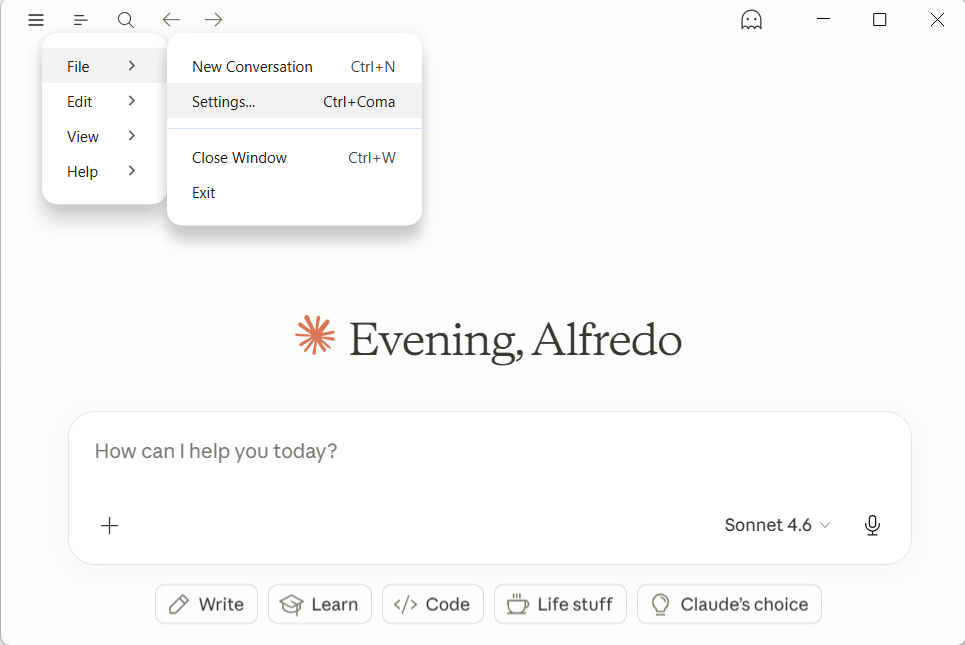
Step 1. Open Claude Desktop and go to Settings
On macOS choose Claude > Settings > Connectors at your user configuration on the left lower corner.
On Windows click the hamburger icon (≡) at the top-left of the window and pick File > Settings.
Step 2. Open the Connectors panel
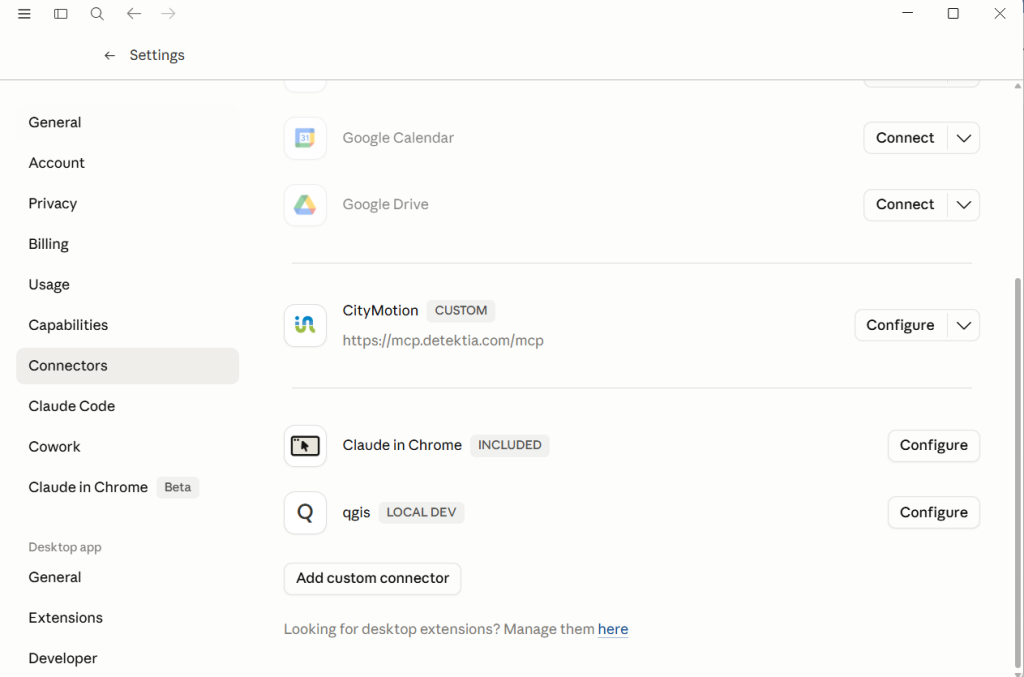
In the Settings sidebar select Connectors. This panel lists every external service Claude is currently connected to. On a fresh installation the list is empty.
Step 3. Add a custom connector
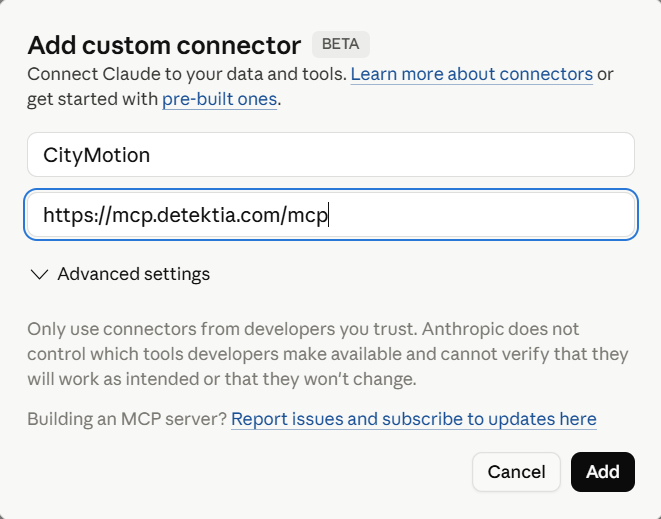
Click the Add custom connector button at the bottom of the panel. A dialog opens asking for the URL of the MCP server you want to connect to.
Step 4. Paste the Detektia URL and click Connect
In the Server URL field paste https://mcp.detektia.com/mcp. You can optionally set a friendly Display name (CityMotion is suggested), then click Connect. Claude Desktop will reach the endpoint, validate it and add it to your connectors list. Because this version of the CityMotion MCP server does not require authentication, the Advanced settings section can be left empty.
Step 5. Verify the connection
Close Settings and start a new conversation.
To confirm that the CityMotion MCP server is properly connected and available:
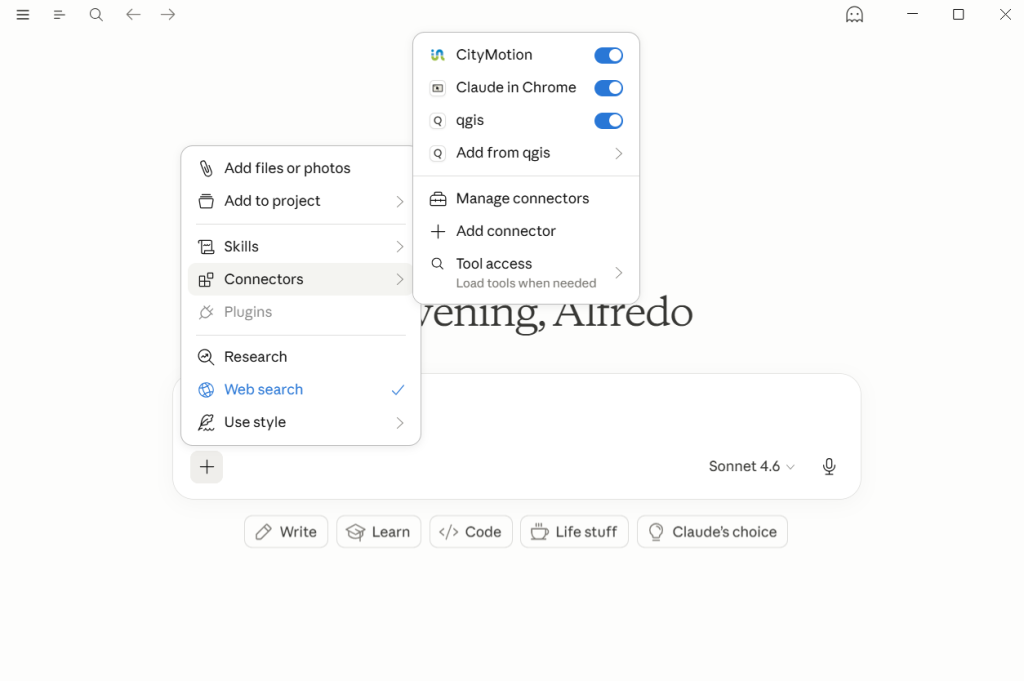
- Click the “+” button located next to the chat input field.
- Open the “Connectors” menu.
- Review the list of available connectors.
If the configuration was completed successfully, CityMotion will appear in the connectors list with the toggle enabled, indicating that the MCP server is active and available for use in the current session.
DONE. Claude can now use the tools published by the CityMotion MCP server. Try asking, for example, “What datasets are available for Guimaraes city in CityMotion?” to see them in action.
From Claude on the web (claude.ai)
If you prefer to use Claude in the browser, or if you simply do not want to install the desktop app on a particular machine, the same CityMotion connector can be added directly from claude.ai.
Step 1. Open the Connectors settings page
Sign in at claude.ai. Click your initials in the bottom-left corner of the sidebar, choose Settings, and then select the Connectors tab. You can also jump there directly via claude.ai/settings/connectors.
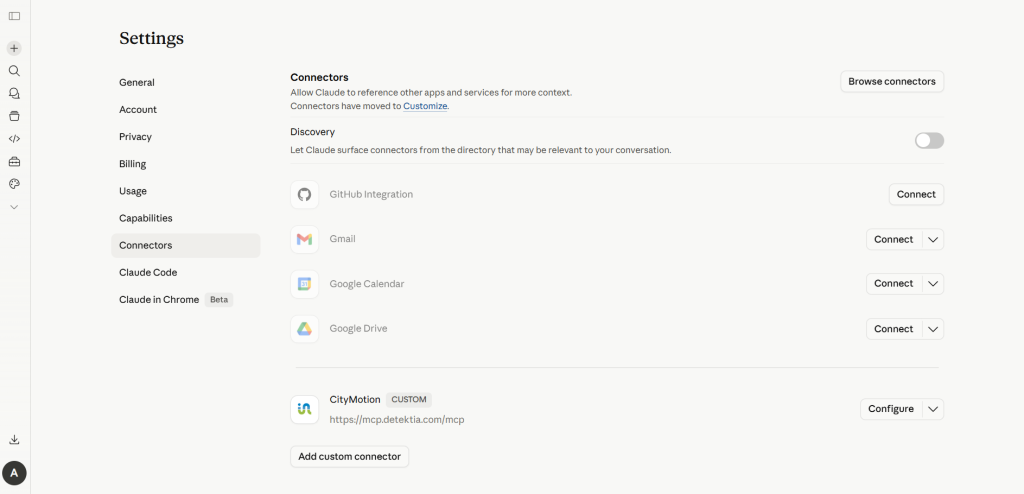
Step 2. Add a custom connector
Scroll down to the Custom connectors section and click Add custom connector. The dialog that opens is identical to the one shown in Figure 6 (same fields, same buttons).
Step 3. Paste the URL and click Connect
Paste https://mcp.detektia.com/mcp into the Server URL field, optionally set CityMotion as the display name, and click Connect.
Step 4. Verify the connection
Open a new conversation. The tools icon appears in the composer in the same way as in the desktop app, and the CityMotion entry shows up under Connected servers. From this point on, both interfaces behave the same way.
DONE. Claude can now use the tools published by the CityMotion MCP server. Try asking, for example, “I want to know the points in the vertical axis with the largest jumps in Gent city” to see them in action.
Connecting from ChatGPT
OpenAI ChatGPT can talk to remote MCP servers, including the CityMotion endpoint. Custom MCP connectors are exposed under the experimental “Developer mode” of ChatGPT, which has to be turned on once per account. After that, adding the CityMotion server is the same paste-the-URL flow you already saw for Claude.
SERVER URL: https://mcp.detektia.com/mcp
ACCOUNT REQUIREMENT: Custom MCP apps/connectors in ChatGPT are currently available on Plus, Team, Enterprise, and Edu plans. Free accounts do not currently include access to the Apps/Connectors menu. Availability and features may change over time depending on OpenAI’s access policies, product updates, and pricing plans.
Enable Developer mode in ChatGPT
Developer mode unlocks the Add custom connector option. You only need to enable it the first time when configuring the CityMotion MCP server. After the connector has been added, Developer mode can be disabled again if desired. Users only need to re-enable Developer mode whenever they want to use the CityMotion app/connector in their ChatGPT conversations.
Step 1. Open ChatGPT settings
Go to chatgpt.com and sign in. Click your profile picture in the bottom-left corner and choose Settings.
Step 2. Open Apps > Advanced
In the Settings window select Apps, then click on Advanced setting section.
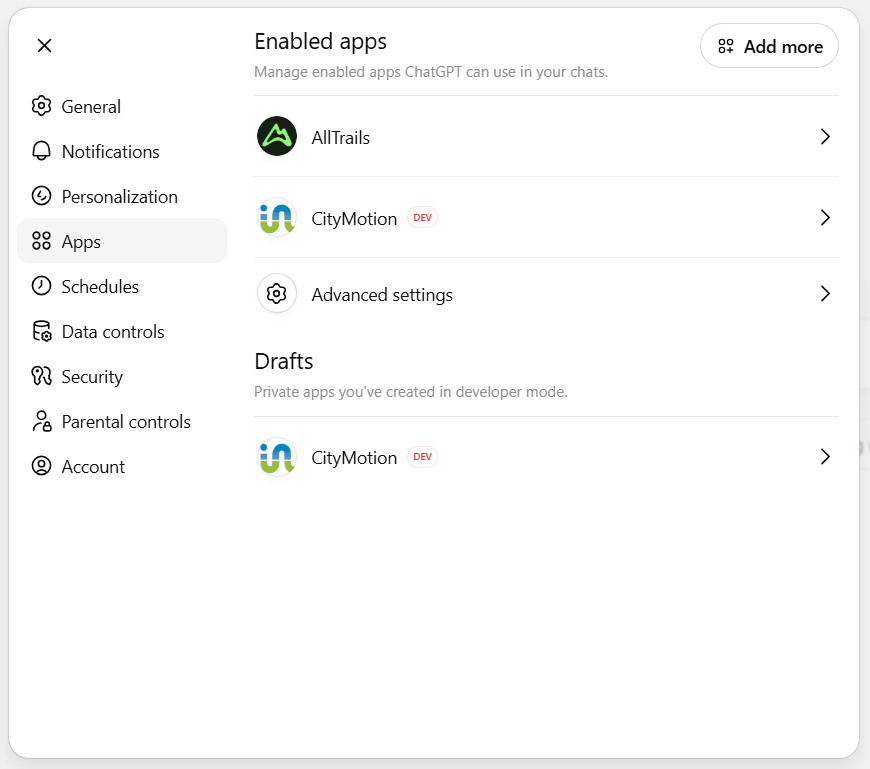
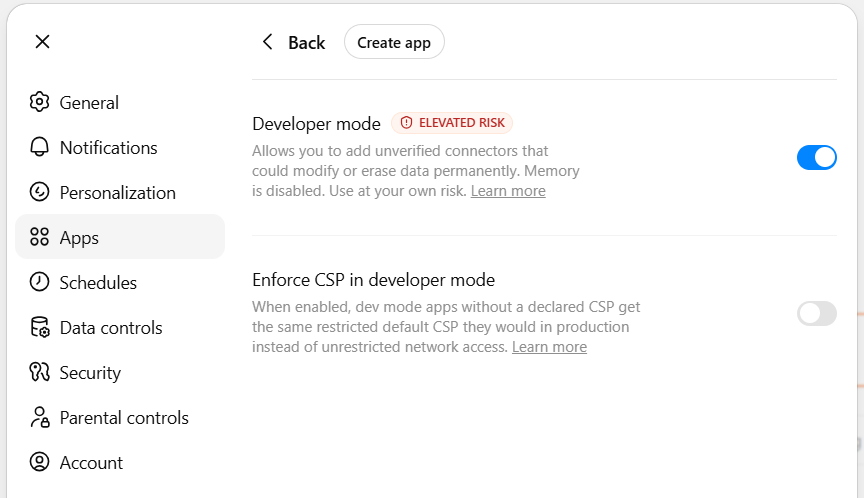
Step 3. Toggle Developer mode on
Find the Developer mode switch and turn it on. Once you’ve enabled developer mode, you can create your custom app by clicking “Create app.”
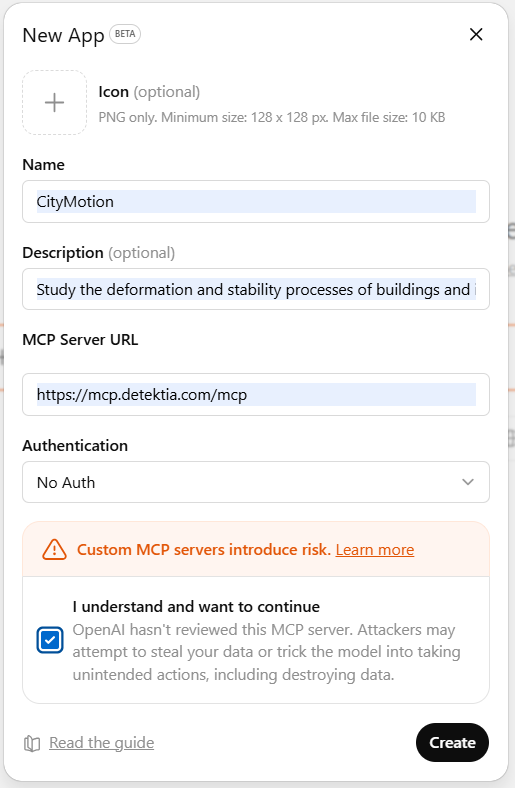
Add the CityMotion connector
To register a new MCP server, complete the fields in the New App form as follows:
- Name: CityMotion
- Description: Study the deformation and stability processes of buildings and infrastructures in European cities.
- MCP Server URL: https://mcp.detektia.com/mcp
- Authentication: Select “No Auth” since this MCP server does not require authentication credentials.
Before creating the app:
- Enable the checkbox “I understand and want to continue” to acknowledge the security warning related to custom MCP servers.
- Click “Create” to finish the configuration.
After the CityMotion MCP application has been successfully created, it becomes available from the Developer mode interface.
To open the app:
- Click the “+” button located next to the chat input field.
- In the dropdown menu, select “More” to display additional tools and integrations.
- Locate and select “CityMotion” from the available applications list.
Once selected, the CityMotion MCP server is enabled for the current chat session and can be used directly within the conversation.
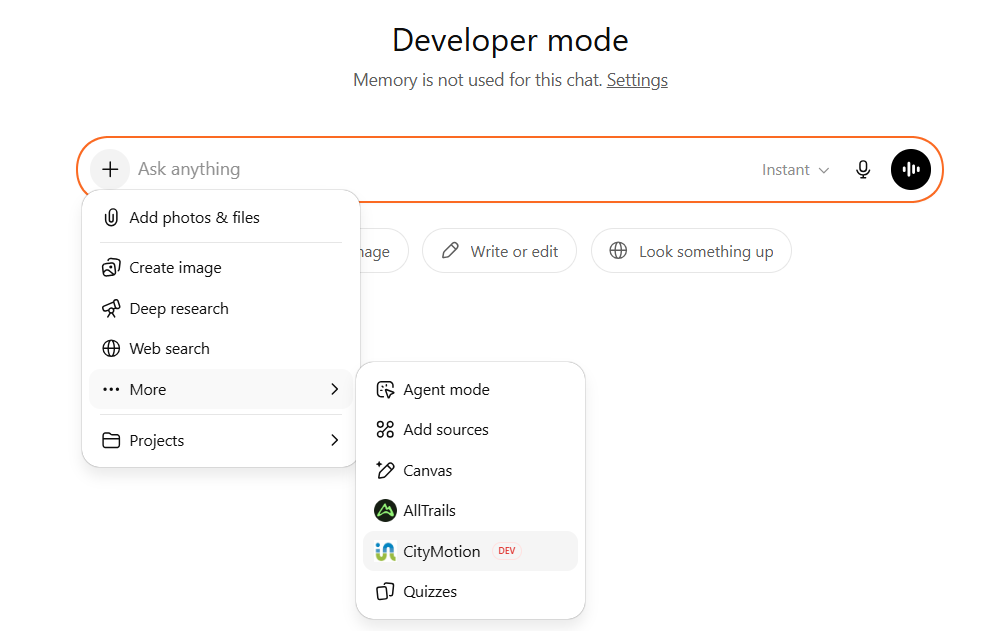
DONE. ChatGPT can now use the tools published by the CityMotion MCP server. Try asking, for example, “I want to analyze the behavior and stability along the vertical axis of the buildings in the Plaka neighborhood of Athens?” to see them in action.
Connecting from Mistral
Mistral Le Chat (Mistral AI’s chat interface at chat.mistral.ai) also supports remote MCP servers through its Connectors panel. The flow is shorter than ChatGPT’s because Le Chat does not require a separate developer-mode switch.
SERVER URL: https://mcp.detektia.com/mcp
Step 1. Open Connectors in Le Chat
Go to chat.mistral.ai and sign in.
To manage or add connectors in the interface:
- In the left navigation panel, select “Intelligence”.
- Under the Intelligence section, click “Connectors”.
- The My Connectors page will open, displaying the list of available and configured connectors.
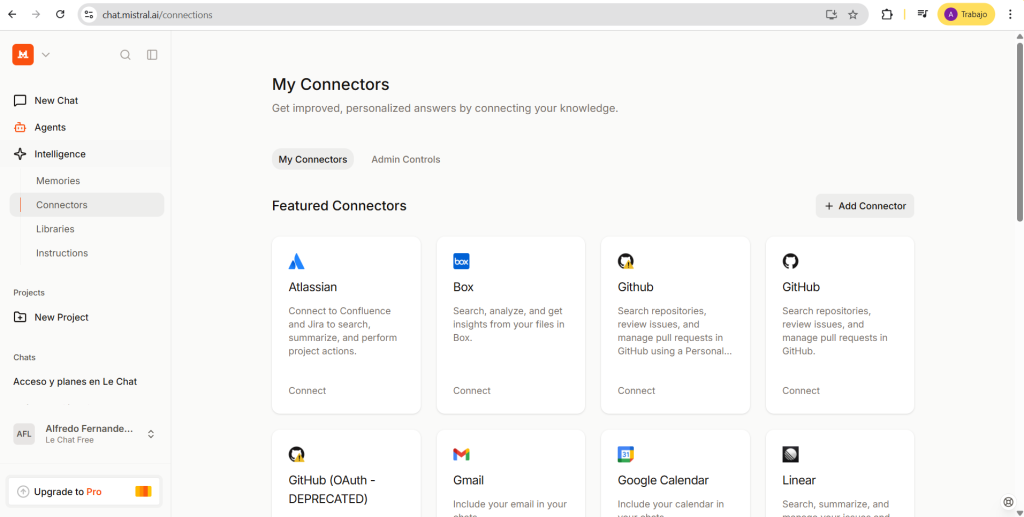
Step 2. Add a new MCP server
To add a new custom MCP connector, click the “Add Connector” button located in the upper-right corner of the page.
Step 3. Enter the CityMotion details
After clicking “Add Connector”, a configuration dialog will appear. Select the “Custom MCP Connector” tab and complete the form with the CityMotion MCP server information.
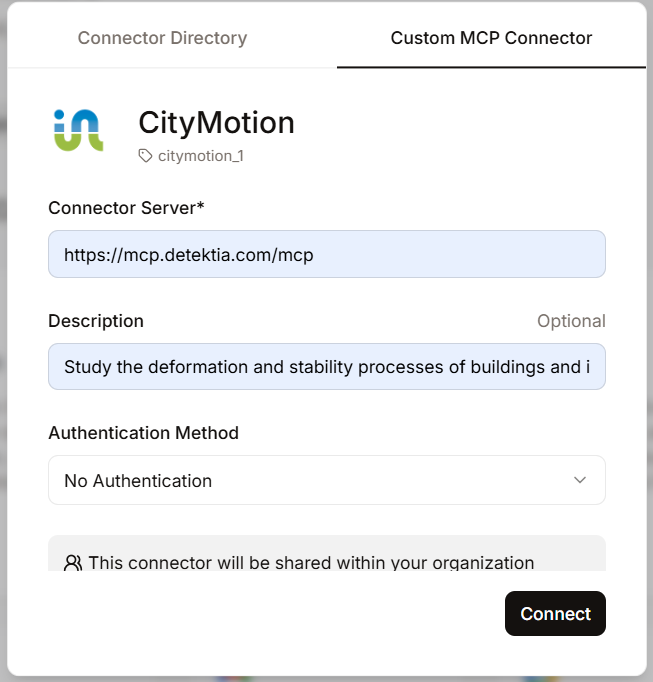
Fill in the fields as follows:
- Connector Title: CityMotion
- Connector Server: https://mcp.detektia.com/mcp
- Description: Study the deformation and stability processes of buildings and infrastructures in European cities.
- Authentication Method: Select “No Auth”.
- Click “Connect” to register the connector.
This version of the CityMotion MCP server does not require authentication, so no OAuth credentials, API keys, or user sign-in are needed.
After creation, the CityMotion connector will become available in the connectors list and can be enabled for conversations when needed.
Start a new conversation. Open the tools tray (the small slider icon in the composer) and confirm that CityMotion is listed among the available tools.
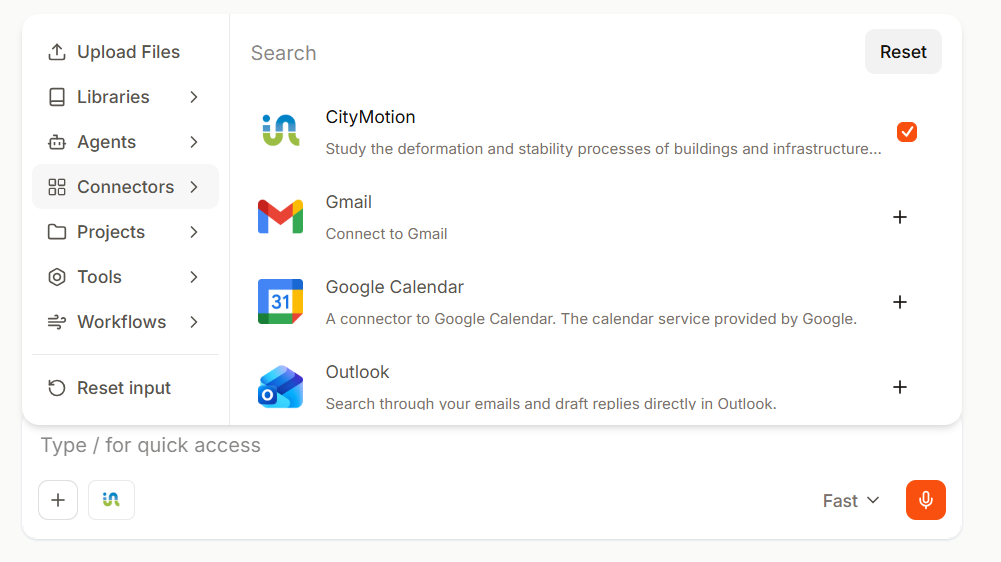
DONE Le Chat can now invoke CityMotion. Try “I want to know the extreme subsidences of the buildings in Patershol (Gent)” to confirm everything works.
